> ## Documentation Index
> Fetch the complete documentation index at: https://docs.advinservers.com/llms.txt
> Use this file to discover all available pages before exploring further.
# Password Reset
> How to set a new root or Administrator password for your virtual server from the Ascienth console.
## Overview
If you have lost your server's password, or want to change it, you can set a new one from the Ascienth console. On Linux this changes the `root` password. On Windows it changes the `Administrator` password.
In a team, you need a role with the **Change server passwords and SSH keys** permission. See [Team Members](/guides/team-members).
## Resetting the Password
Open your server, click the "Settings" tab, then "Reset Password".
Type the new password in `Password` and click `Save`.
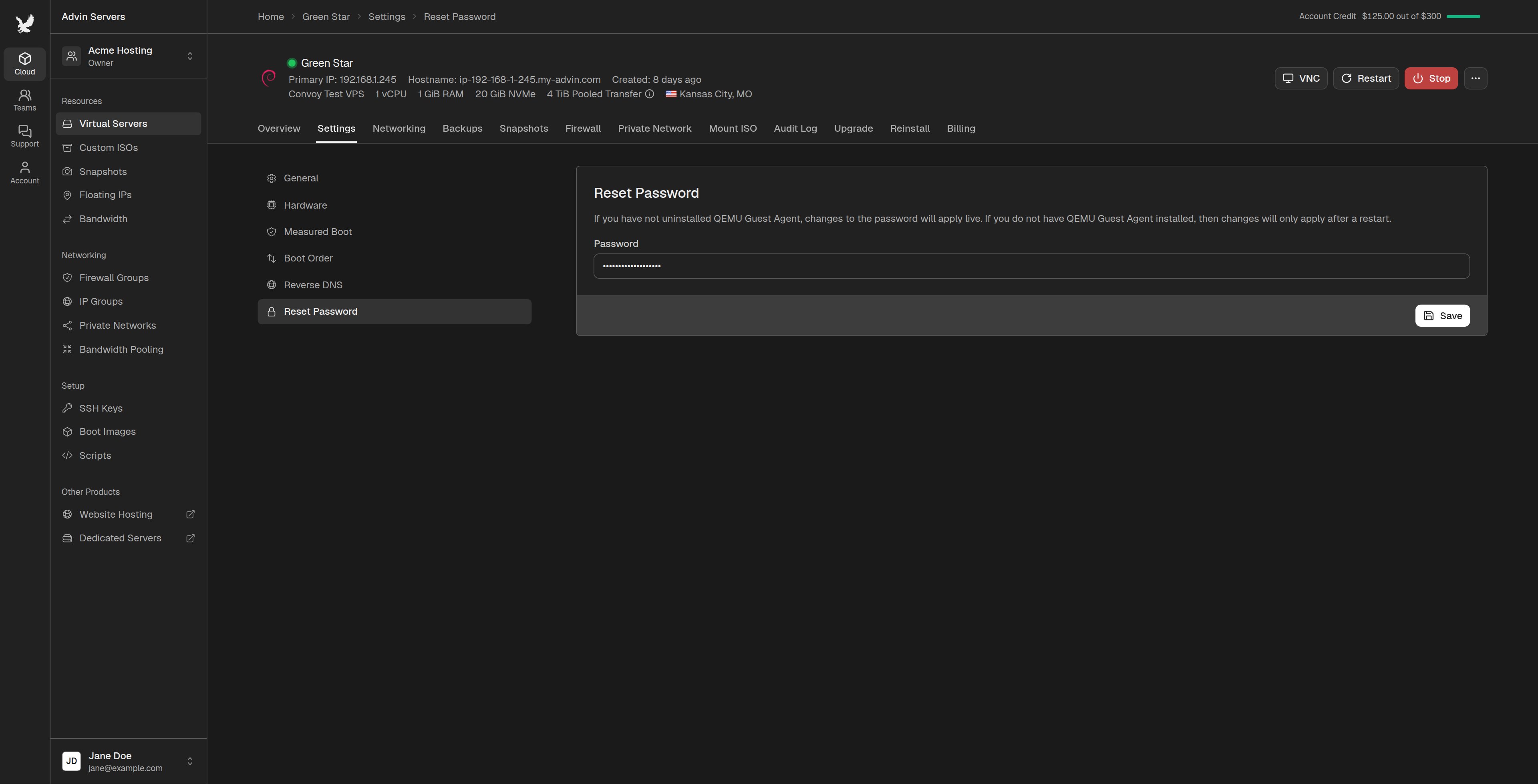 The password must be at least 5 characters long and can only use characters found on a US keyboard.
## When the New Password Applies
If the QEMU Guest Agent is running on your server, the new password works right away.
If you have uninstalled the QEMU Guest Agent, or your server is off, the new password applies the next time your server starts. Restart the server to use it.
Resetting the password does not change the SSH keys on your server.
This documentation is built and hosted on [Mintlify](https://mintlify.com), a developer documentation platform.
The password must be at least 5 characters long and can only use characters found on a US keyboard.
## When the New Password Applies
If the QEMU Guest Agent is running on your server, the new password works right away.
If you have uninstalled the QEMU Guest Agent, or your server is off, the new password applies the next time your server starts. Restart the server to use it.
Resetting the password does not change the SSH keys on your server.
This documentation is built and hosted on [Mintlify](https://mintlify.com), a developer documentation platform.