> ## Documentation Index
> Fetch the complete documentation index at: https://docs.advinservers.com/llms.txt
> Use this file to discover all available pages before exploring further.
# Transferring Services to Another Account
> How to hand a server, floating IP or snapshot storage over to another customer, for example after selling it.
## Overview
You can hand a service over to another customer yourself, from the Ascienth console at [https://vps.advinservers.com](https://vps.advinservers.com). The service keeps running, keeps its IP addresses and data, and its billing moves to the new owner's account. You do not need to open a ticket, and you never have to share your password.
It works through [teams](/guides/team-members):
1. The **seller** (the current owner) creates a team, puts the service in it, and invites the buyer with a role that allows transfers.
2. The **buyer** accepts the invitation and moves the service onto their own account.
Nothing moves until the buyer presses the button, and the seller can call it off at any time before that by removing the buyer from the team.
A transfer is permanent. Once the service is on the buyer's account, removing them from your team does not bring it back, and we cannot reverse it for you. Only give a buyer the transfer permission when you are ready for them to take the service.
## What Can Be Transferred
| Service | Can be transferred | What goes with it |
| - | - | - |
| **Server** | Yes | Its primary IP addresses, its disk exactly as it is, its reverse DNS records, and any secondary floating IPs you choose. |
| **Floating IP** | Yes, on its own | The address and its billing. It must be detached from any server first. |
| **Snapshot storage** | Yes | Every snapshot inside it. |
| SSH keys, setup scripts, ISOs, firewall groups, IP groups, private networks | No | These belong to your account. You can only move them between your own teams. |
| Bandwidth blocks, account credit, invoices, API keys | No | These stay with your account. |
Services are transferred **one at a time**. To hand over two servers, the buyer moves each one separately.
## Requirements
Both of you need:
* **An account with us.** The buyer must already have an account, either on the client area at [https://clients.advinservers.com](https://clients.advinservers.com) or on the Ascienth console, and give the seller its email address.
* **Separate billing profiles in the same currency.** The service keeps its price, so both accounts must bill in the same currency. If they do not, the transfer is refused.
The service being transferred must also be ready to move.
* **No unpaid invoices.** Any unpaid, pending or overdue invoice for the server must be paid first. Invoices cannot move between accounts.
* **Nothing of the seller's attached.** Remove these first, from the page named:
| Attached | Where to remove it |
| - | - |
| Private networks | The server's "Private Networking" tab |
| Firewall groups | The server's "Firewall" tab |
| Mounted ISOs | The server's "Mount ISO" tab |
| Bandwidth blocks | The "Bandwidth Blocks" page |
* **Nothing in progress.** The server cannot be suspended, installing, restoring or being deleted, and it cannot have an upgrade in progress or be moving between nodes.
* **Room on the buyer's account** for any floating IPs that go with it. Each account has a floating IP limit.
* Active, and **detached** from every server. To move a floating IP together with its server, transfer the server instead and select the IP in the dialog.
* Free of unpaid invoices.
* Within the buyer's floating IP limit.
* Active, and not suspended or being cancelled.
* Free of unpaid invoices.
* Not in the middle of a resize, and not receiving a snapshot that is still being taken.
If anything is in the way, the buyer sees a list of what to fix when they try to move the service, and nothing moves.
## Privacy
You do not need to know each other's real identity, but some account details are shown:
* The buyer sees the seller's **account name and email address** in the invitation and in the team.
* The seller sees the buyer's **account name and email address** in the team's member list.
Nobody sees the other's password, other services, billing details or account credit, as long as the seller follows the steps below and puts only the service being sold in the team.
## For the Seller
Check the [requirements](#requirements) above. Pay any unpaid invoice for the service, and remove private networks, firewall groups, mounted ISOs and bandwidth blocks from a server.
Then decide what you want to leave behind:
* **Delete anything private from the server.** The disk is handed over exactly as it is, including files, saved passwords and your SSH keys inside the operating system. Reinstalling the server first wipes it.
* **Delete reverse DNS records** you do not want the buyer to have. They go with the server.
* **Snapshots stay with you.** Snapshots of the server stay in your snapshot storage and can still be restored onto your other servers. Backups taken before the transfer are not available to the buyer.
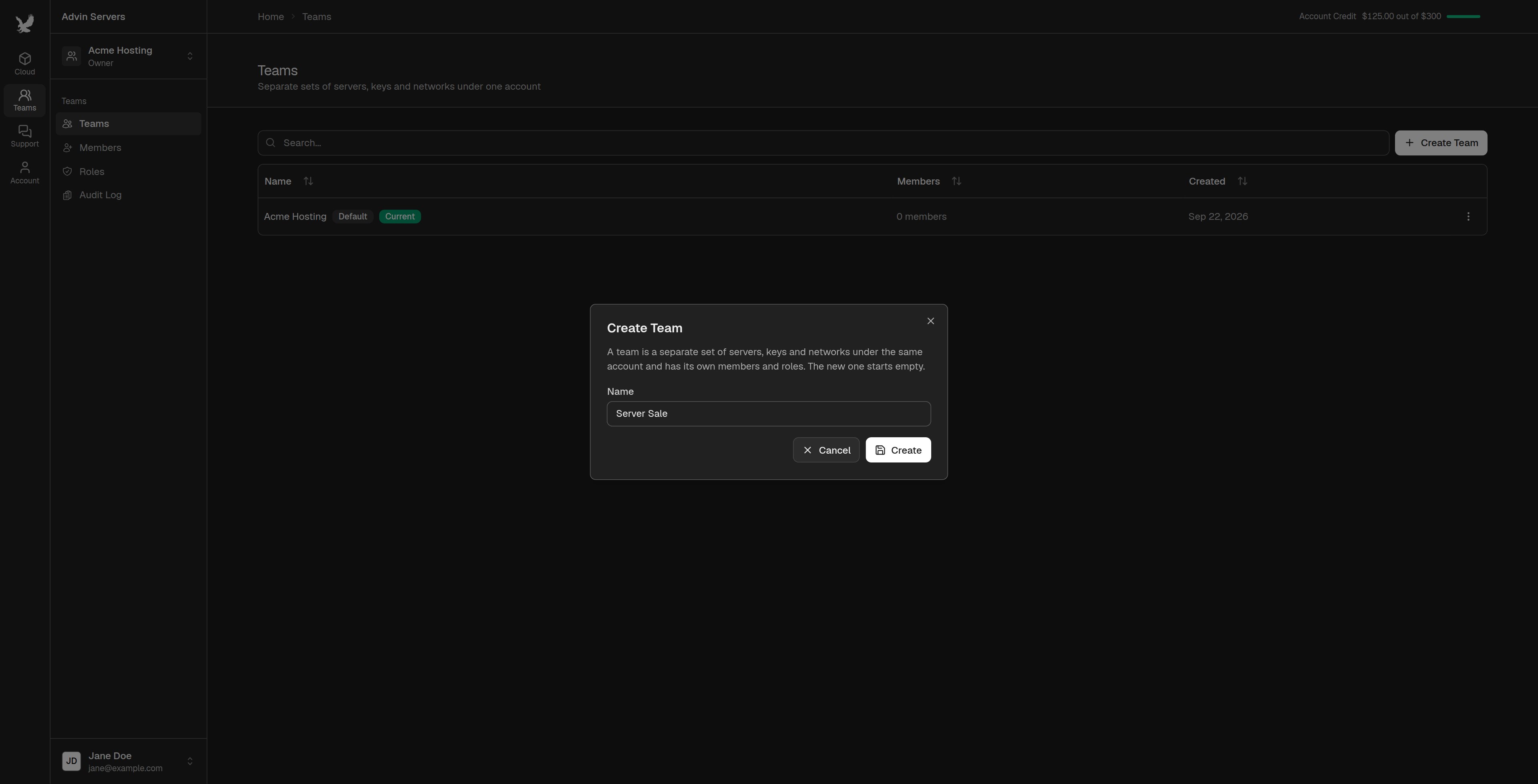
Click "Teams" in the left sidebar, then `Create Team`. Give it a name such as "Server Sale" and click `Create`.
A separate team means the buyer can only see what you put in it. Do not invite a buyer to a team that holds your other servers.
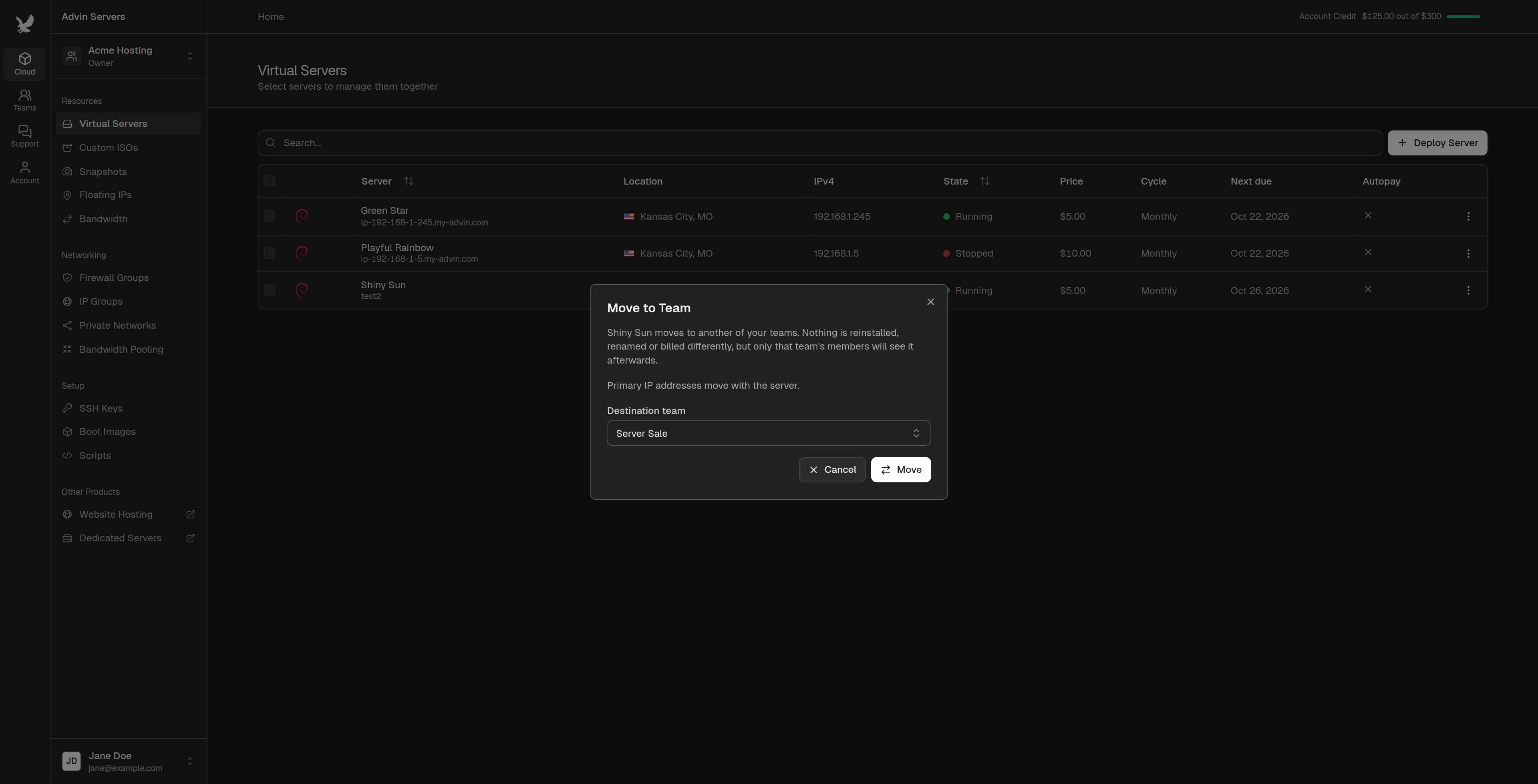
 Open the list the service is on ("Virtual Servers", "Floating IPs" or "Snapshots"). Open the menu at the end of its row, choose `Move to team`, pick the new team and click `Move`.
This only changes which of your teams the service is in. Its billing and data do not change.
Open the list the service is on ("Virtual Servers", "Floating IPs" or "Snapshots"). Open the menu at the end of its row, choose `Move to team`, pick the new team and click `Move`.
This only changes which of your teams the service is in. Its billing and data do not change.
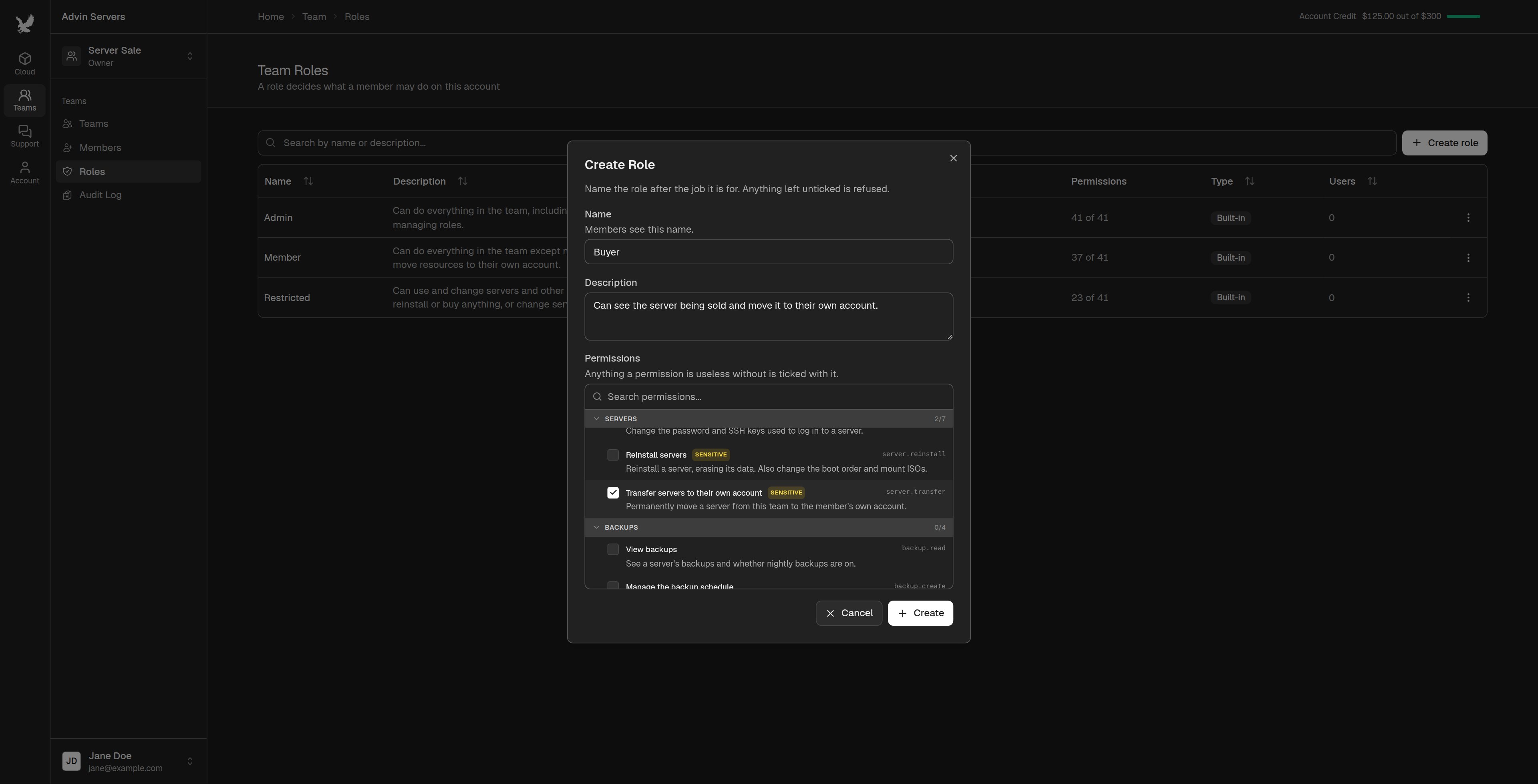
 Switch to the new team from the team menu at the top of the sidebar. Click "Roles", then `Create role`.
Name it "Buyer" and tick only the permission for what you are selling:
| Selling | Permission to tick |
| - | - |
| A server | `Transfer servers to their own account` |
| A floating IP | `Transfer floating IPs to their own account` |
| A snapshot storage | `Transfer snapshot storage to their own account` |
The matching view permission is ticked for you, so the buyer can see the service. Leave everything else unticked. Click `Create`.
Switch to the new team from the team menu at the top of the sidebar. Click "Roles", then `Create role`.
Name it "Buyer" and tick only the permission for what you are selling:
| Selling | Permission to tick |
| - | - |
| A server | `Transfer servers to their own account` |
| A floating IP | `Transfer floating IPs to their own account` |
| A snapshot storage | `Transfer snapshot storage to their own account` |
The matching view permission is ticked for you, so the buyer can see the service. Leave everything else unticked. Click `Create`.
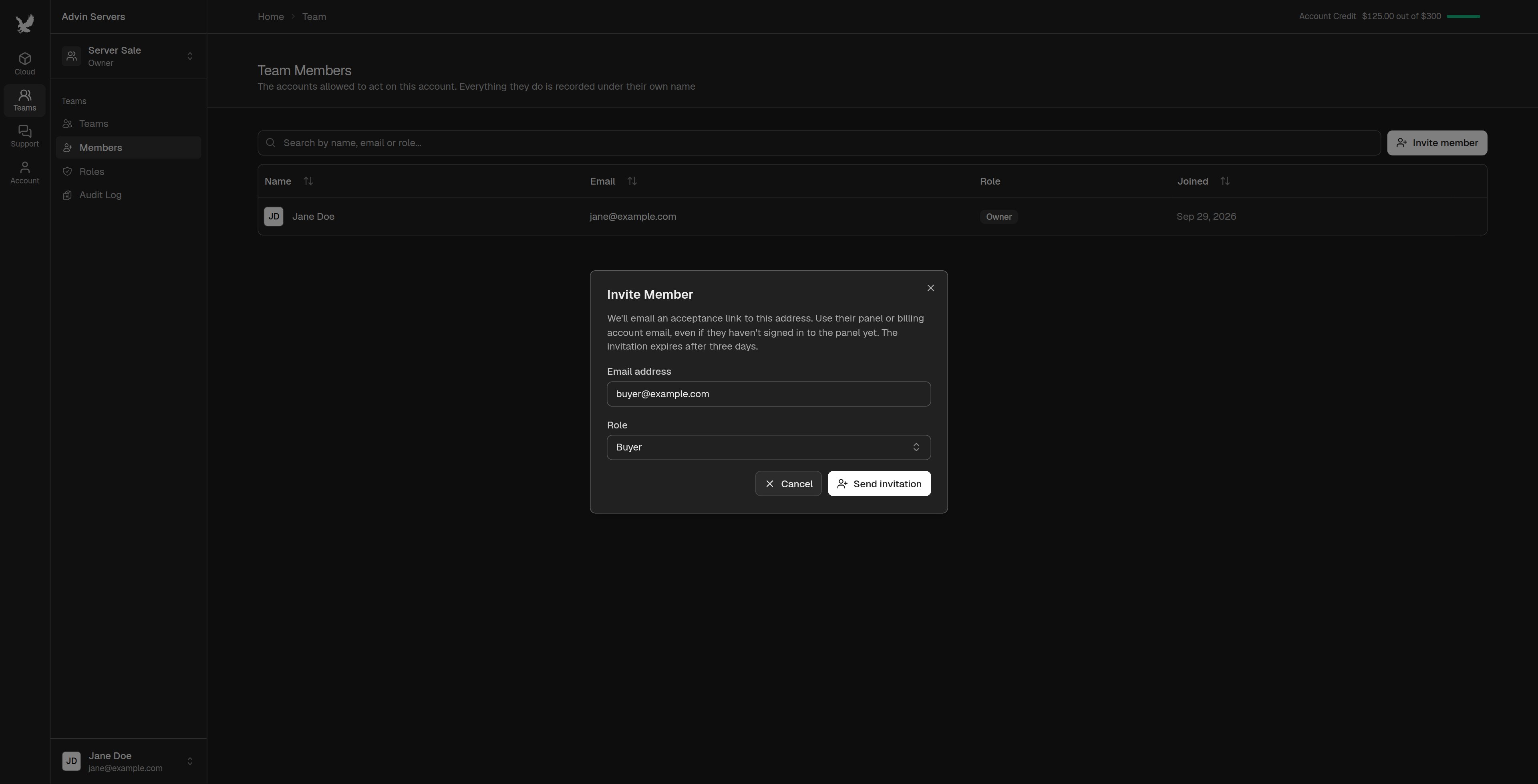
 Click "Members", then `Invite member`. Enter the email address of the buyer's account, set **Role** to **Buyer**, and click `Send invitation`.
The role starts on **Admin**. Change it to your Buyer role before you send the invitation, or the buyer will be able to do everything in the team.
Click "Members", then `Invite member`. Enter the email address of the buyer's account, set **Role** to **Buyer**, and click `Send invitation`.
The role starts on **Admin**. Change it to your Buyer role before you send the invitation, or the buyer will be able to do everything in the team.
 The invitation expires after **3 days**. Until the buyer accepts it, you can withdraw it from the "Pending invitations" list.
Once the buyer has moved the service, it disappears from your account and its billing stops. Remove the buyer from the team from the "Members" page, then delete the team from the "Teams" page.
**Selling to someone you do not know?** Anyone holding the transfer permission can take the service as soon as they accept. If you want the buyer to see the server before they pay, create a second role that only has `View servers` and invite them with that. They can see the server's name, location, IP address and status. Once you have been paid, change their role to Buyer from the "Members" page. See [Team Members and Roles](/guides/team-members) for how to change a role.
## For the Buyer
Send the seller the email address of your Advin Servers account. If you do not have an account yet, create one on the client area at [https://clients.advinservers.com](https://clients.advinservers.com) first.
Open the link in the invitation email and sign in. Check that the team and the person who invited you are who you expect, then accept. See [Accepting an invitation](/guides/team-members#accepting-an-invitation).
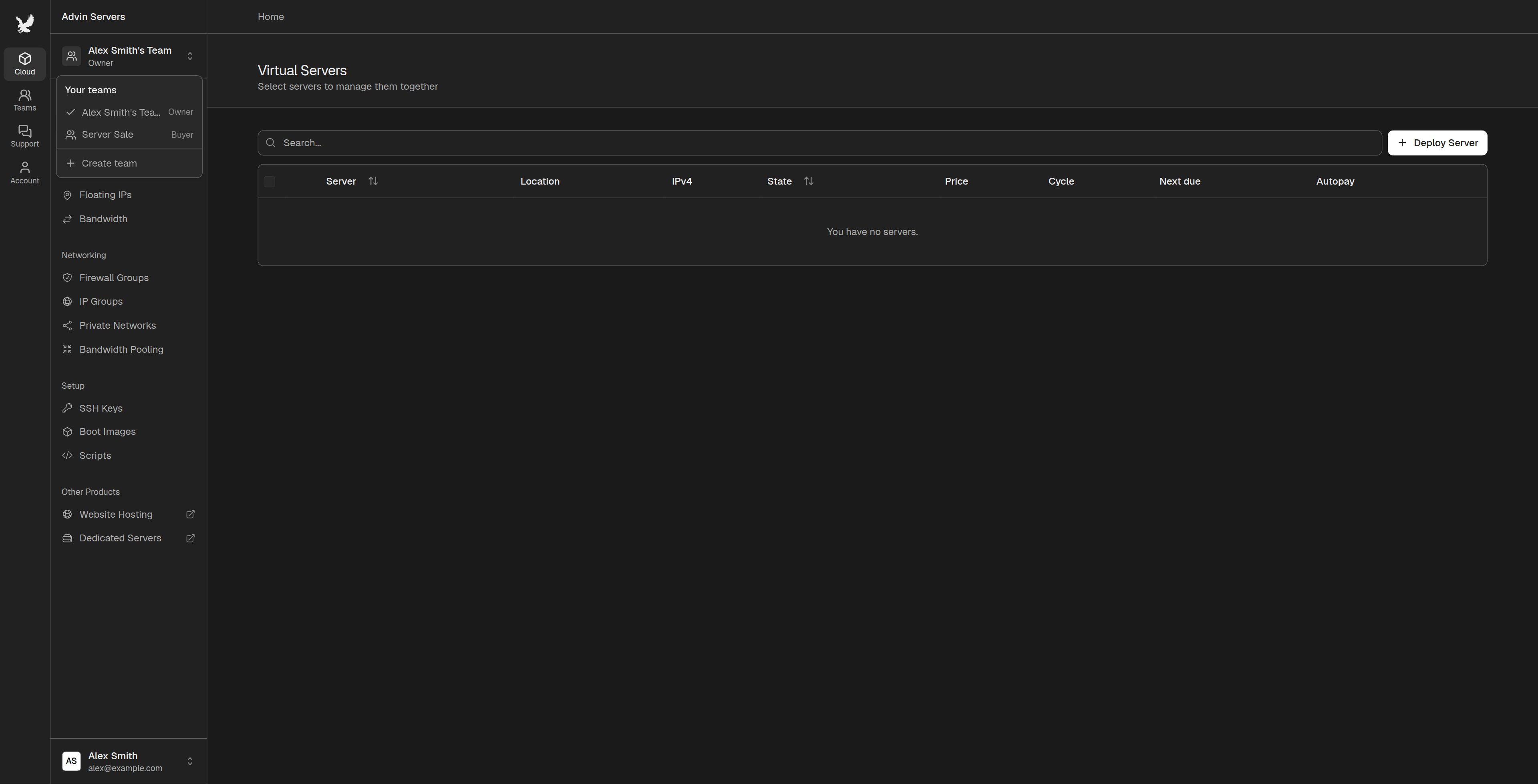
Open the team menu at the top of the left sidebar and pick the seller's team. Your role in it is shown next to its name.
The invitation expires after **3 days**. Until the buyer accepts it, you can withdraw it from the "Pending invitations" list.
Once the buyer has moved the service, it disappears from your account and its billing stops. Remove the buyer from the team from the "Members" page, then delete the team from the "Teams" page.
**Selling to someone you do not know?** Anyone holding the transfer permission can take the service as soon as they accept. If you want the buyer to see the server before they pay, create a second role that only has `View servers` and invite them with that. They can see the server's name, location, IP address and status. Once you have been paid, change their role to Buyer from the "Members" page. See [Team Members and Roles](/guides/team-members) for how to change a role.
## For the Buyer
Send the seller the email address of your Advin Servers account. If you do not have an account yet, create one on the client area at [https://clients.advinservers.com](https://clients.advinservers.com) first.
Open the link in the invitation email and sign in. Check that the team and the person who invited you are who you expect, then accept. See [Accepting an invitation](/guides/team-members#accepting-an-invitation).
Open the team menu at the top of the left sidebar and pick the seller's team. Your role in it is shown next to its name.
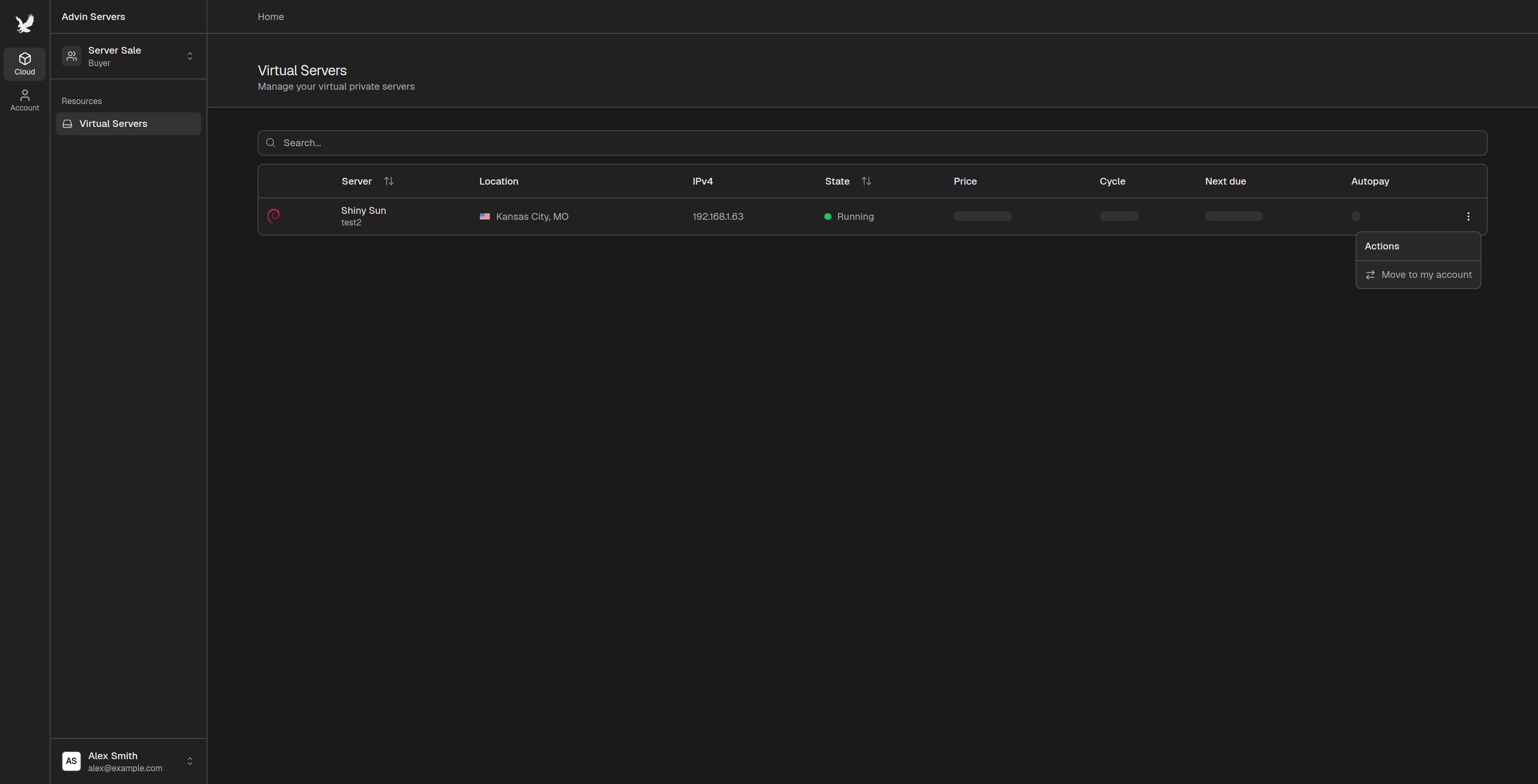
 You only see what the seller's role allows: the service being sold, with its name, location, IP address and status.
Open the list the service is on ("Virtual Servers", "Floating IPs" or "Snapshots"). Open the menu at the end of its row and choose `Move to my account` (for a server) or `Move to team` (for a floating IP or snapshot storage).
You only see what the seller's role allows: the service being sold, with its name, location, IP address and status.
Open the list the service is on ("Virtual Servers", "Floating IPs" or "Snapshots"). Open the menu at the end of its row and choose `Move to my account` (for a server) or `Move to team` (for a floating IP or snapshot storage).
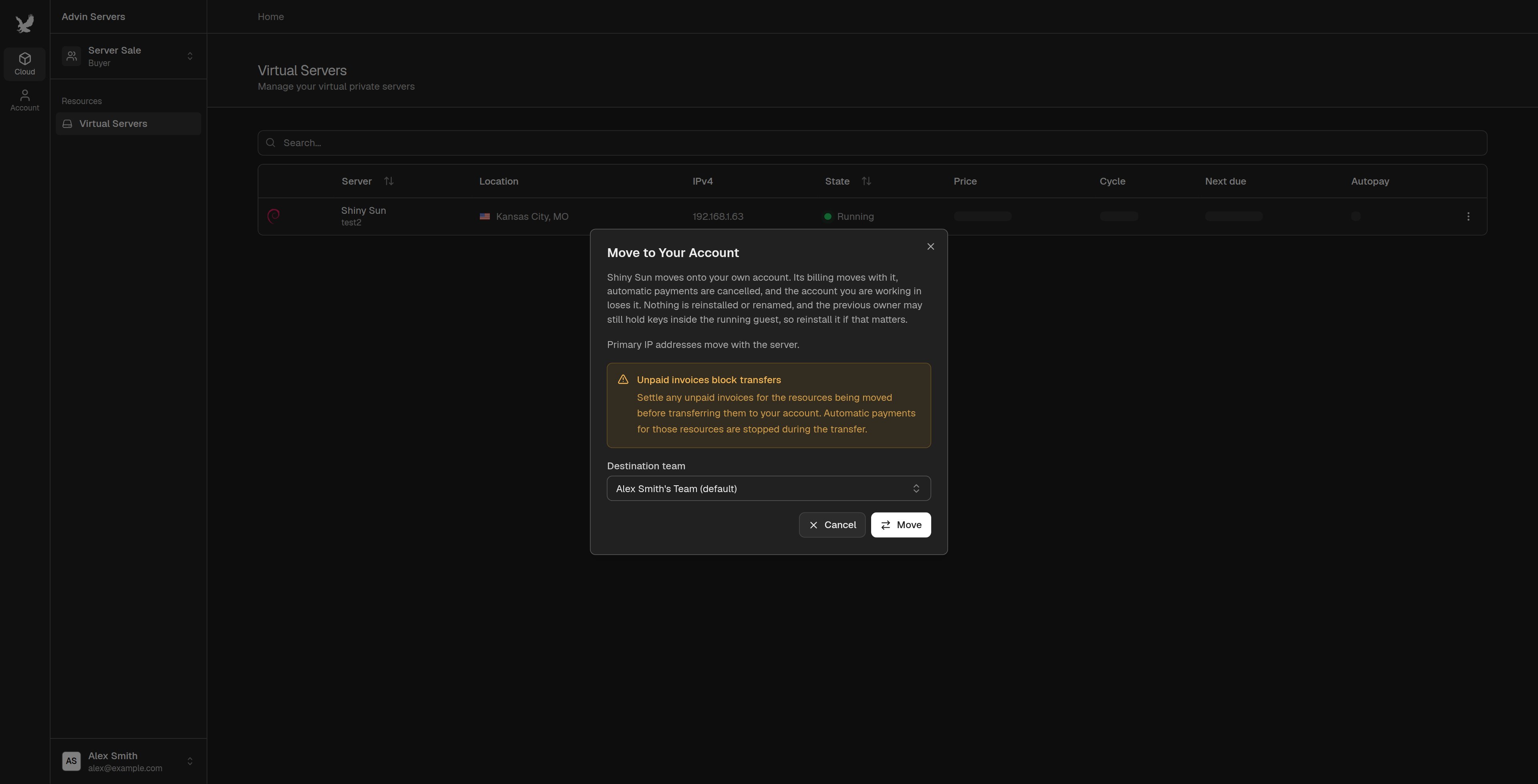
 The "Move to Your Account" dialog opens. Choose which of your own teams the service should land in.
For a server, choose which of its secondary floating IPs come with it. The primary IP addresses always move with the server. Any floating IP you leave unticked is detached and stays with the seller.
Click `Move`. If something is still in the way, the dialog lists it and nothing moves. Ask the seller to fix it and try again.
The "Move to Your Account" dialog opens. Choose which of your own teams the service should land in.
For a server, choose which of its secondary floating IPs come with it. The primary IP addresses always move with the server. Any floating IP you leave unticked is detached and stays with the seller.
Click `Move`. If something is still in the way, the dialog lists it and nothing moves. Ask the seller to fix it and try again.
 The service is now on your account, in the team you picked. Then:
* **Set up payment.** The service keeps its price, billing cycle and next due date, so nothing is charged when it moves. Automatic payments are cancelled during the transfer, so add your own before the next invoice is due.
* **Secure the server.** The seller may still have passwords or SSH keys inside the operating system. [Reset the root password](/guides/reset-password), or [reinstall](/guides/reinstall) the server if you want a clean start. A reinstall erases everything on the disk.
* **Ask the seller to remove you** from their team. You no longer need to be in it.
## After the Transfer
| | Seller | Buyer |
| - | - | - |
| Service and its IP addresses | Removed from your account | On your account |
| Billing | Stops. Past invoices stay on your account. | Same price, cycle and due date. Add your own payment method. |
| Automatic payments | Cancelled | Not set up. Add them yourself. |
| Server disk and files | | Unchanged |
| Reverse DNS records | | Unchanged |
| Backups taken before the transfer | No longer available | Not available. New backups start from the transfer. |
| Snapshots of the server | Stay in your snapshot storage | Not included, unless the snapshot storage itself was transferred |
| Abuse reports for its IP addresses | Stop | Sent to you |
## FAQ
No. Transfers made from the console are free. Services the console cannot transfer can be moved by our staff through a support ticket, for a fee. See [Service Transfers](/policies/termsofservice#service-transfers) in our Terms of Service.
No. The new owner can hand it back the same way, by inviting the seller to one of their teams.
Yes, up until the buyer moves the service. Withdraw the invitation, or remove the buyer from the team.
No. It keeps running, and keeps its IP addresses and hostname.
No. Each server, floating IP or snapshot storage is moved on its own.
Check that the buyer is in the team that holds the service, and that their role includes the transfer permission for that kind of service. The buyer must also be working in the seller's team, not one of their own.
This documentation is built and hosted on [Mintlify](https://mintlify.com), a developer documentation platform.
The service is now on your account, in the team you picked. Then:
* **Set up payment.** The service keeps its price, billing cycle and next due date, so nothing is charged when it moves. Automatic payments are cancelled during the transfer, so add your own before the next invoice is due.
* **Secure the server.** The seller may still have passwords or SSH keys inside the operating system. [Reset the root password](/guides/reset-password), or [reinstall](/guides/reinstall) the server if you want a clean start. A reinstall erases everything on the disk.
* **Ask the seller to remove you** from their team. You no longer need to be in it.
## After the Transfer
| | Seller | Buyer |
| - | - | - |
| Service and its IP addresses | Removed from your account | On your account |
| Billing | Stops. Past invoices stay on your account. | Same price, cycle and due date. Add your own payment method. |
| Automatic payments | Cancelled | Not set up. Add them yourself. |
| Server disk and files | | Unchanged |
| Reverse DNS records | | Unchanged |
| Backups taken before the transfer | No longer available | Not available. New backups start from the transfer. |
| Snapshots of the server | Stay in your snapshot storage | Not included, unless the snapshot storage itself was transferred |
| Abuse reports for its IP addresses | Stop | Sent to you |
## FAQ
No. Transfers made from the console are free. Services the console cannot transfer can be moved by our staff through a support ticket, for a fee. See [Service Transfers](/policies/termsofservice#service-transfers) in our Terms of Service.
No. The new owner can hand it back the same way, by inviting the seller to one of their teams.
Yes, up until the buyer moves the service. Withdraw the invitation, or remove the buyer from the team.
No. It keeps running, and keeps its IP addresses and hostname.
No. Each server, floating IP or snapshot storage is moved on its own.
Check that the buyer is in the team that holds the service, and that their role includes the transfer permission for that kind of service. The buyer must also be working in the seller's team, not one of their own.
This documentation is built and hosted on [Mintlify](https://mintlify.com), a developer documentation platform.