> ## Documentation Index
> Fetch the complete documentation index at: https://docs.advinservers.com/llms.txt
> Use this file to discover all available pages before exploring further.
# Team Members and Roles
> How to create a role and invite someone to help manage your servers.
## Overview
Teams let other people work on your servers without sharing your password. Each person signs in with their own account, and a **role** decides what they can do in your team. Everything they do is recorded in the team's audit log under their own name.
You can manage members from the "Teams" section of the Ascienth console at [https://vps.advinservers.com](https://vps.advinservers.com).
The person you invite must already have an account with us, either on the client area at [https://clients.advinservers.com](https://clients.advinservers.com) or on the Ascienth console. They do not need to have signed in to the console before.
To invite people or write roles, you must own the team or hold a role with the **Manage the team** permission.
## Built-in Roles
Every team starts with three roles. They cannot be edited or deleted, but you can give them to anyone.
| Role | What it allows |
| - | - |
| **Admin** | Everything, including inviting members and writing roles. |
| **Member** | Everything except inviting members, changing roles, or moving a server onto their own account. |
| **Restricted** | Create and change servers and other resources. Cannot delete or reinstall anything, change server passwords or SSH keys, or spend money. |
If none of these fit, create a custom role first.
## Creating a Custom Role
Click "Teams" in the left sidebar, then "Roles". You will see the built-in roles and any custom roles you have made.
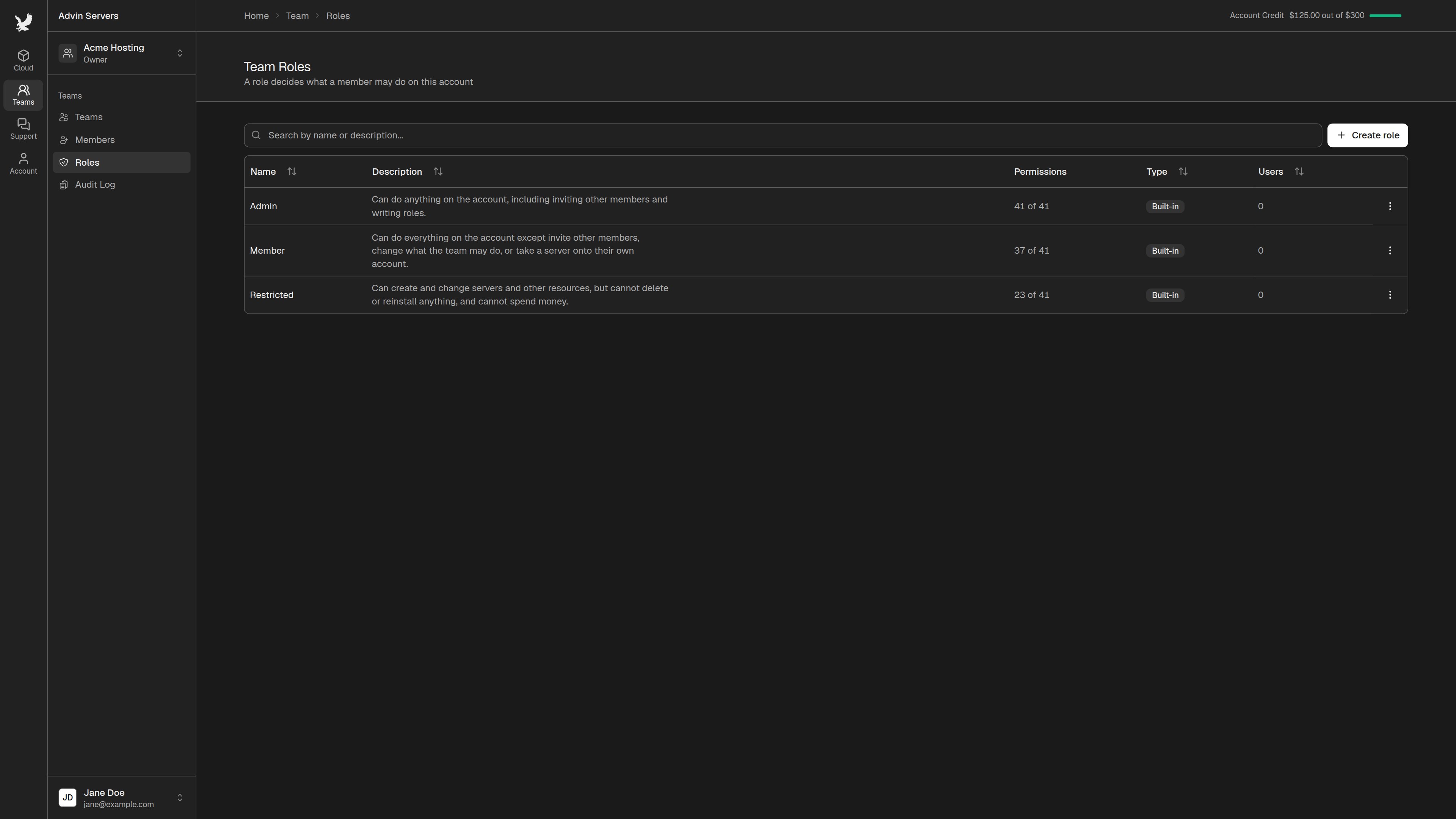 Click `Create role`. Name the role after the job it is for, and add a short description if you like.
Tick each permission the role should have. Anything left unticked is refused. When a permission needs another one to work, the other one is ticked for you. For example, ticking `Control power` also ticks `View servers`.
Permissions marked **Sensitive** can delete data, give away resources, or spend money. Only grant them to people you trust.
Click `Create role`. Name the role after the job it is for, and add a short description if you like.
Tick each permission the role should have. Anything left unticked is refused. When a permission needs another one to work, the other one is ticked for you. For example, ticking `Control power` also ticks `View servers`.
Permissions marked **Sensitive** can delete data, give away resources, or spend money. Only grant them to people you trust.
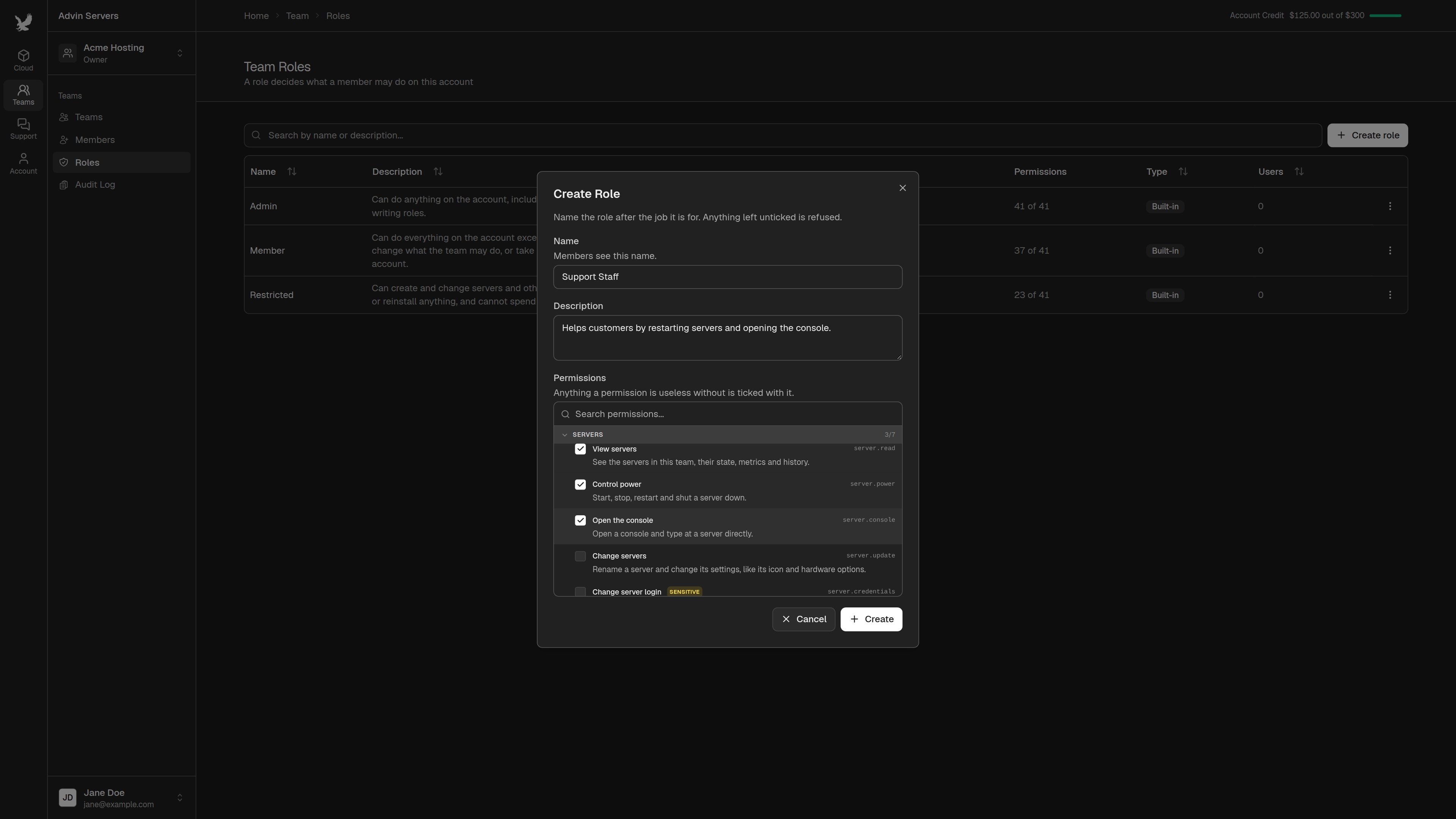 Click `Create`. The new role appears in the list, marked `Custom`, and can now be given to a member.
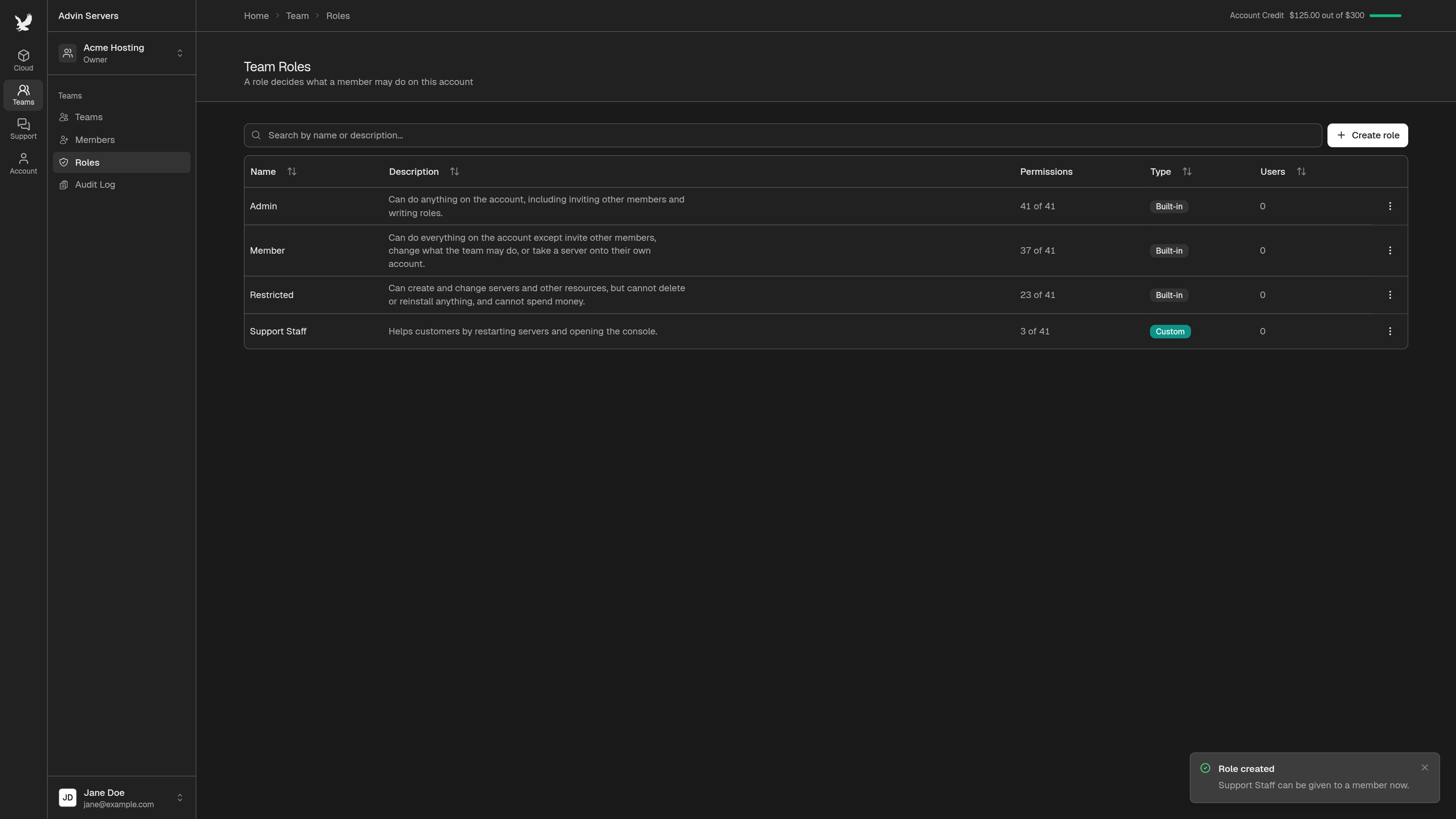 To change or remove a custom role later, click the menu at the end of its row and choose `Edit` or `Delete`. A role cannot be deleted while a member holds it or a pending invitation offers it.
## Inviting a Team Member
Click "Teams" in the left sidebar, then "Members", and click `Invite member`.
Enter the email address of their client area or console account, and pick the role they should have. Then click `Send invitation`.
To change or remove a custom role later, click the menu at the end of its row and choose `Edit` or `Delete`. A role cannot be deleted while a member holds it or a pending invitation offers it.
## Inviting a Team Member
Click "Teams" in the left sidebar, then "Members", and click `Invite member`.
Enter the email address of their client area or console account, and pick the role they should have. Then click `Send invitation`.
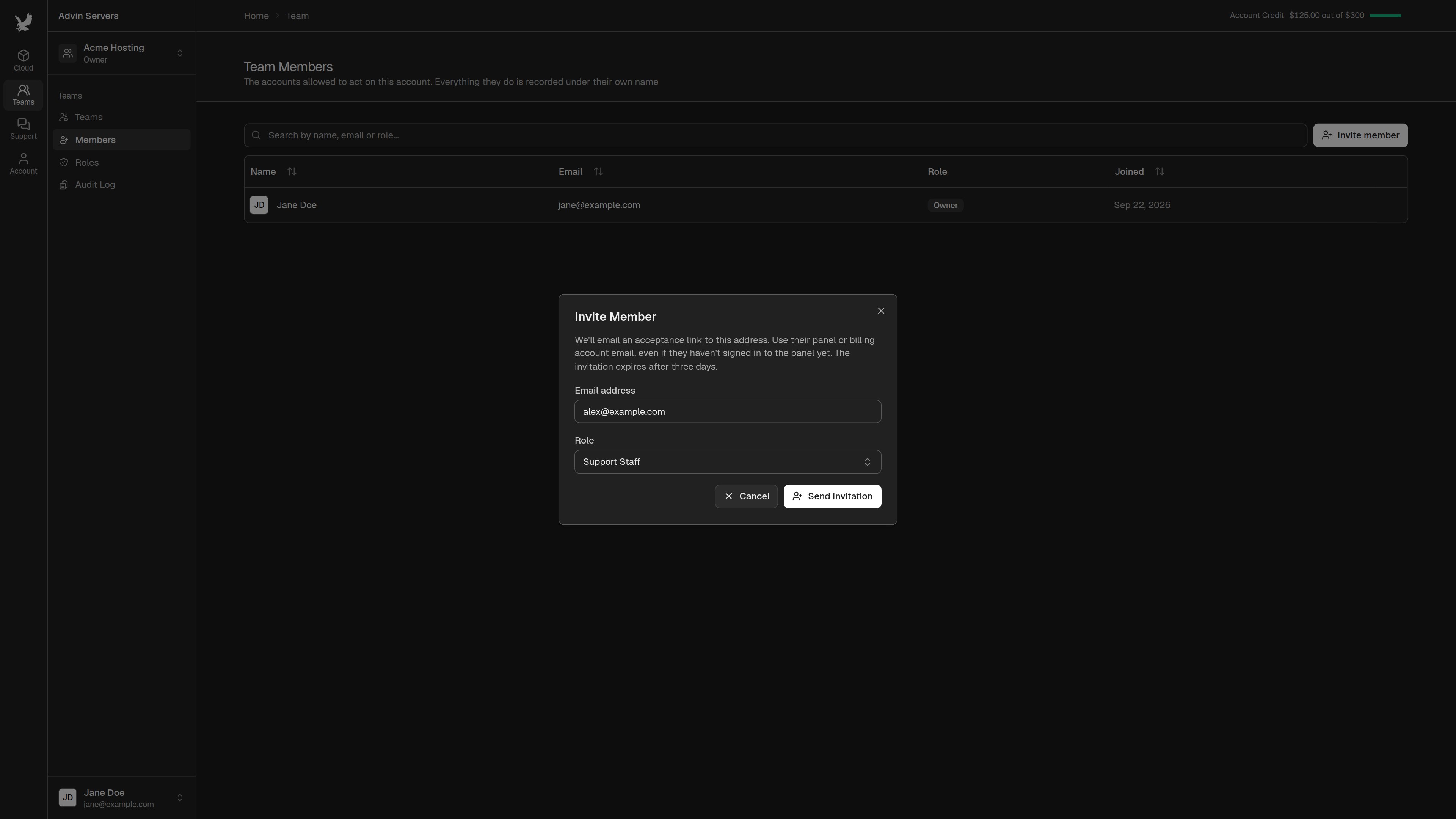 We email them a link to accept. Until they answer, the invitation is listed under "Pending invitations". Invitations expire after **3 days**.
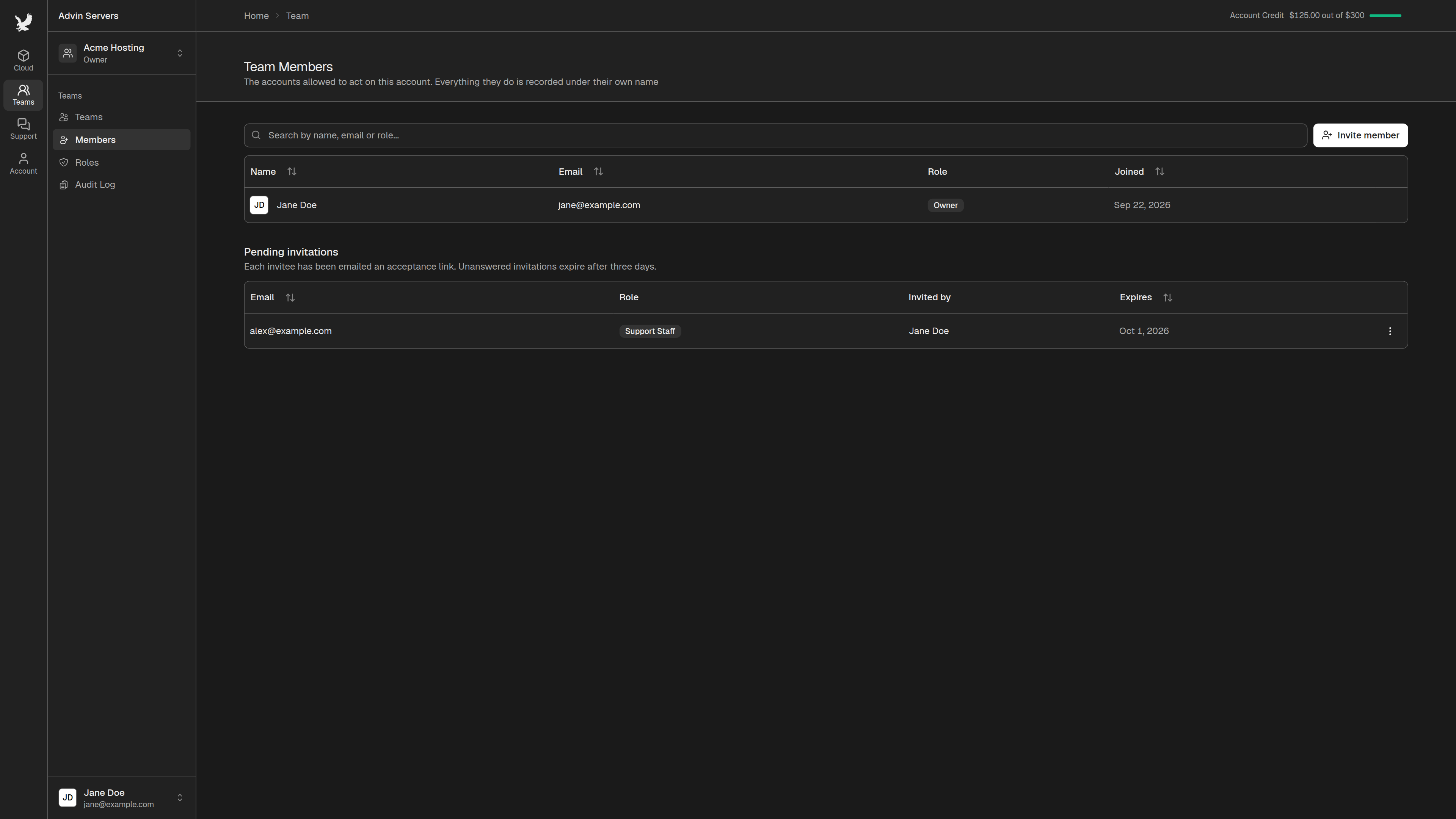 To cancel an invitation, click the menu at the end of its row and choose `Withdraw invitation`. To send a new link, invite the same address again. This replaces the old invitation.
If the address cannot be invited, you will see the same message whatever the reason: the address has no account with us, it is your own, or it is already in the team. This protects the privacy of our customers' accounts.
## Accepting an Invitation
The person you invited opens the link in the email and signs in. They are asked to accept or decline.
To cancel an invitation, click the menu at the end of its row and choose `Withdraw invitation`. To send a new link, invite the same address again. This replaces the old invitation.
If the address cannot be invited, you will see the same message whatever the reason: the address has no account with us, it is your own, or it is already in the team. This protects the privacy of our customers' accounts.
## Accepting an Invitation
The person you invited opens the link in the email and signs in. They are asked to accept or decline.
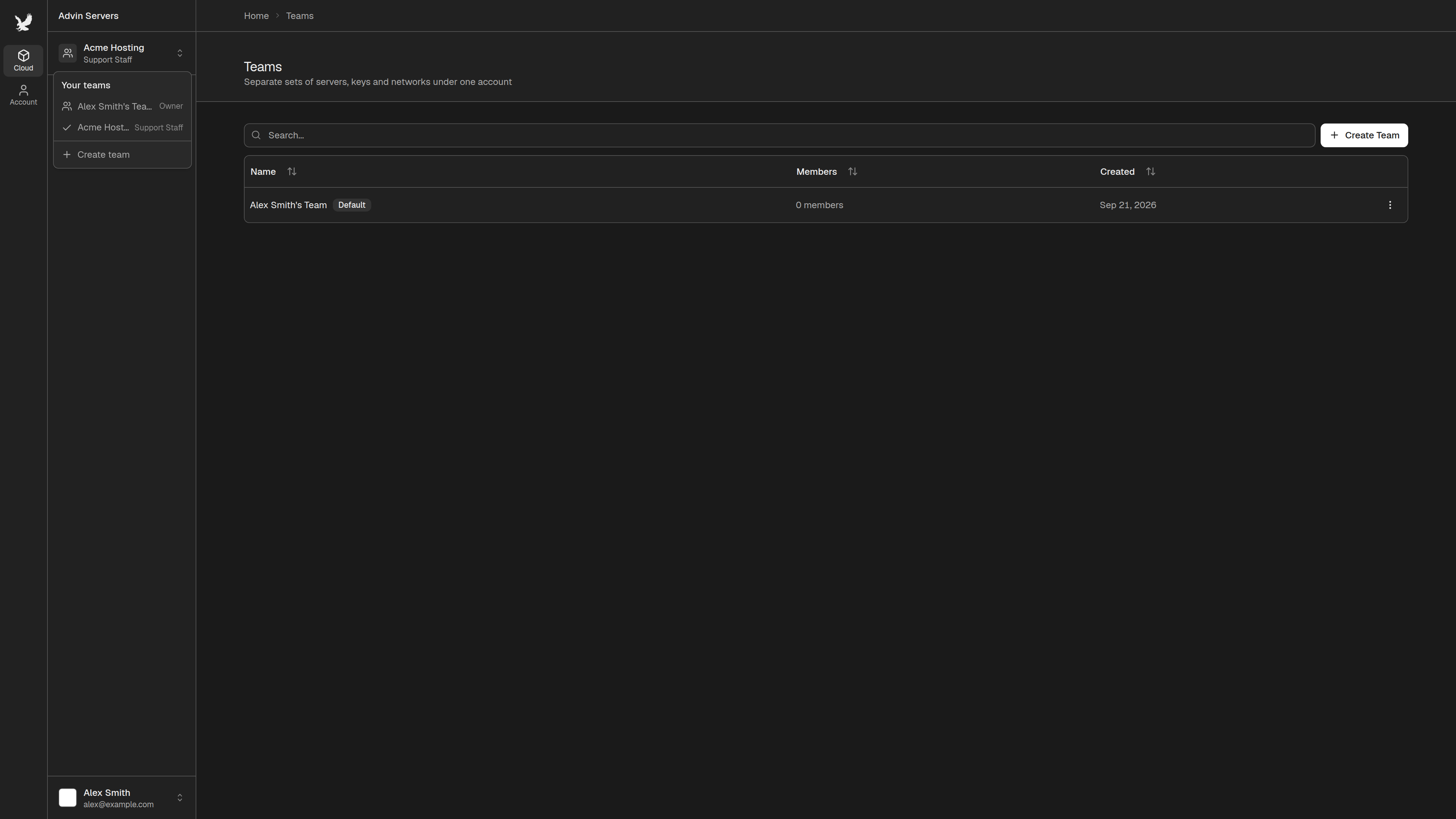
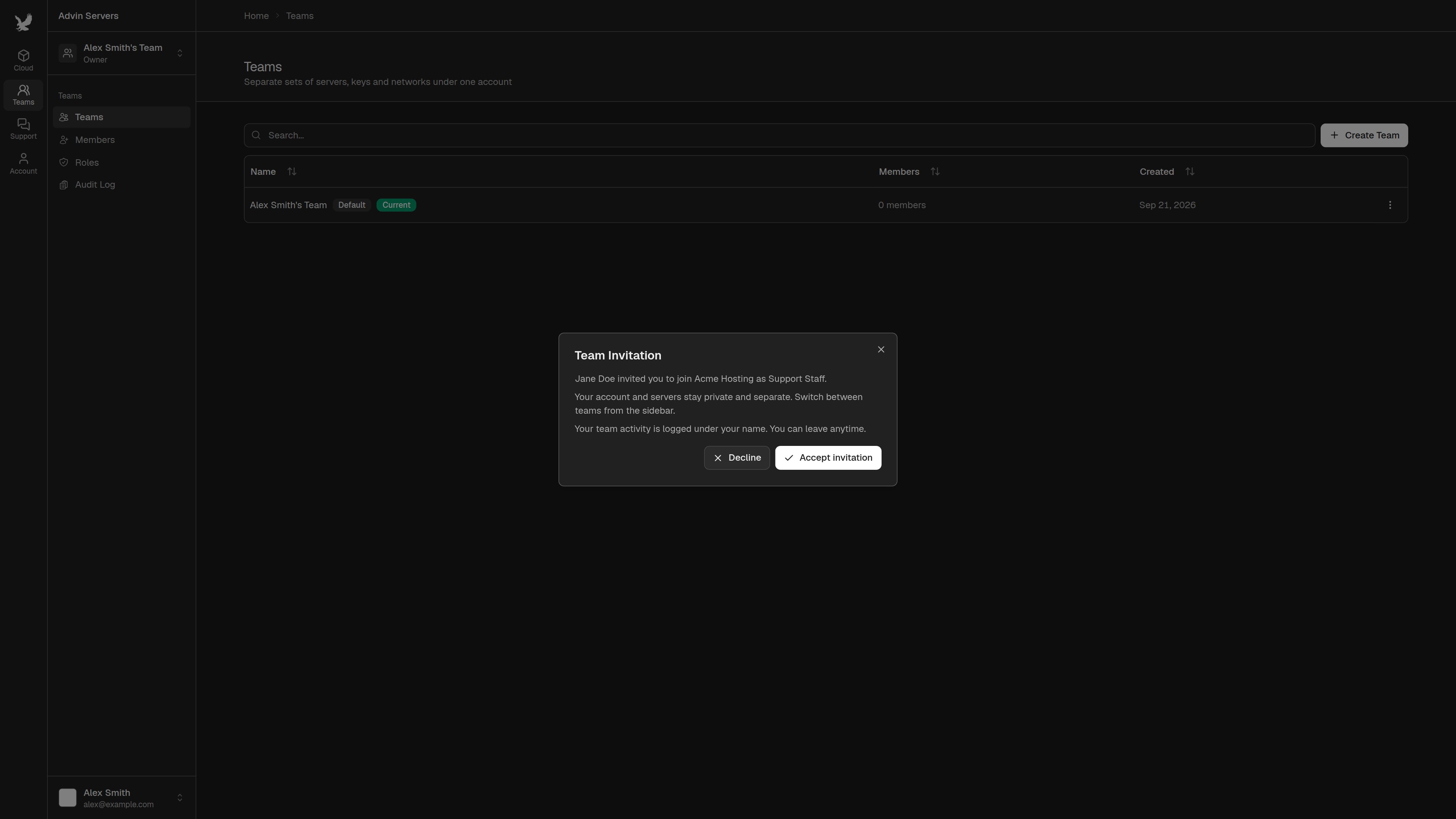 Once they accept, they can switch between their own team and yours from the team menu at the top of the sidebar. Their own servers and account stay private. They only see the pages their role allows.
 ## Changing a Member's Role or Removing Them
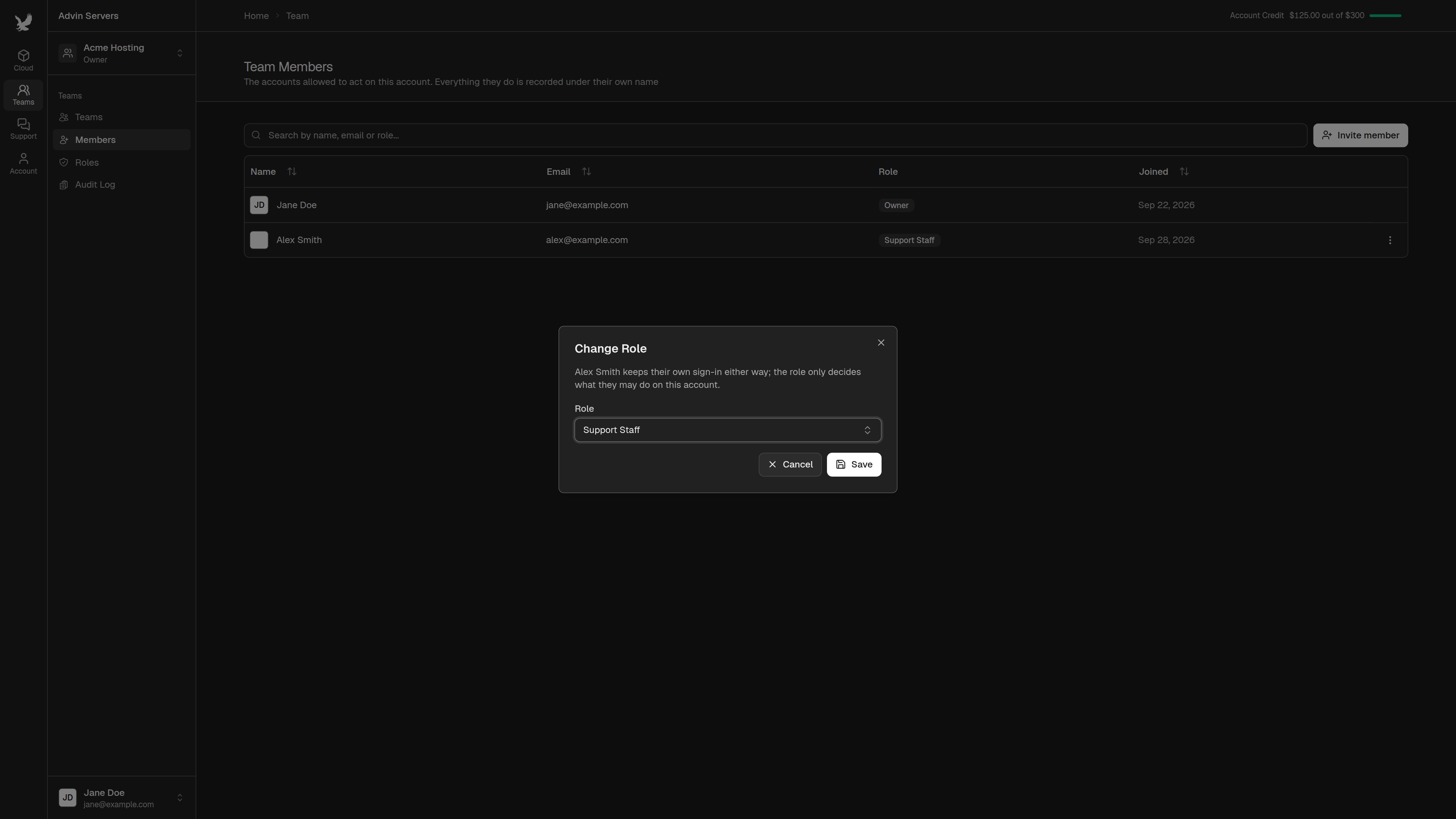
On the Members page, click the menu at the end of a member's row.
## Changing a Member's Role or Removing Them
On the Members page, click the menu at the end of a member's row.
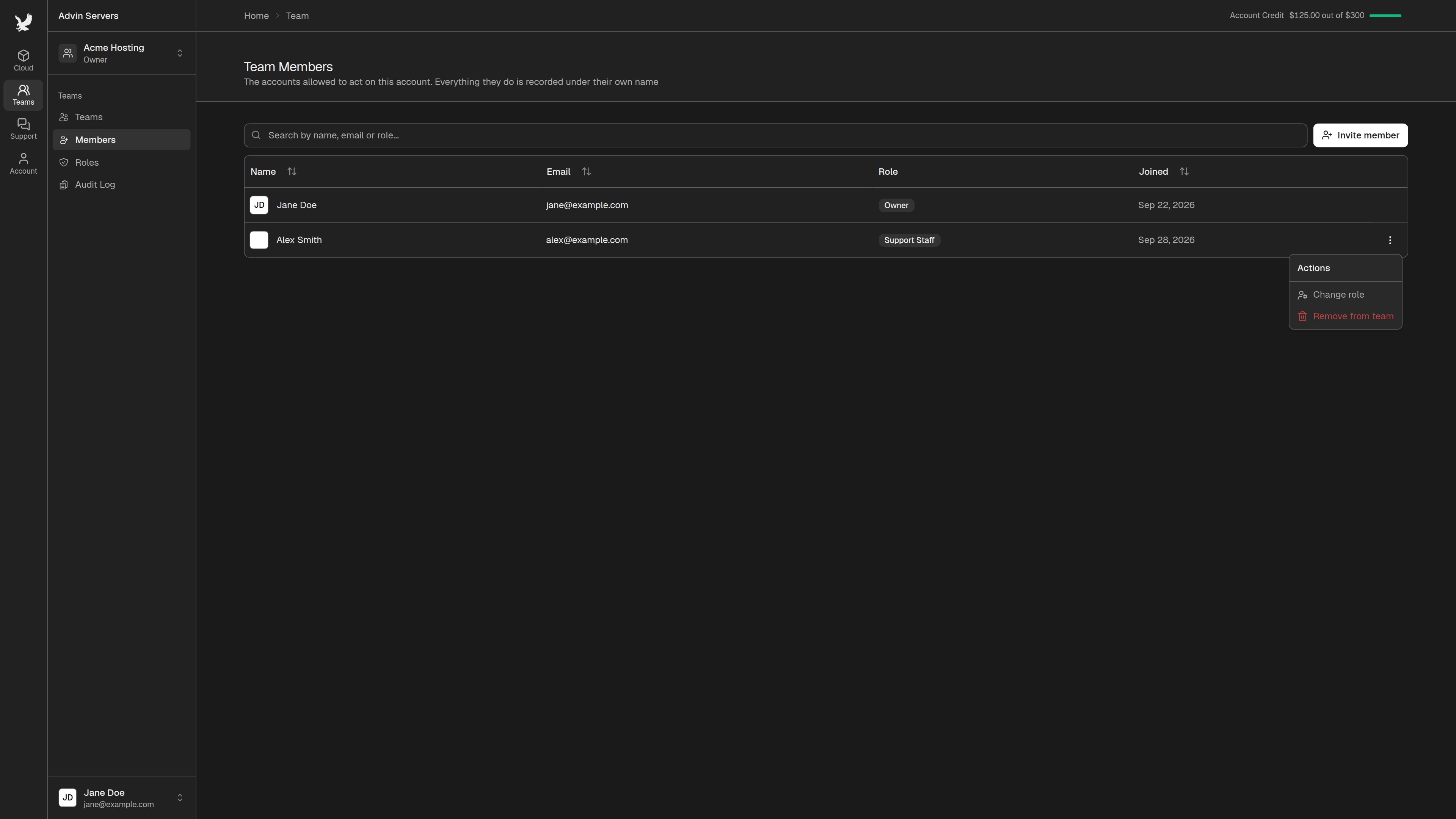 * `Change role` moves them onto another role. The change applies on their next click.
* `Remove from team` takes away their access straight away. Their activity history stays in the team's audit log.
* `Change role` moves them onto another role. The change applies on their next click.
* `Remove from team` takes away their access straight away. Their activity history stays in the team's audit log.
 You cannot give anyone a permission you do not hold yourself, and you cannot change your own role. Only the team owner can grant every permission.
This documentation is built and hosted on [Mintlify](https://mintlify.com), a developer documentation platform.
You cannot give anyone a permission you do not hold yourself, and you cannot change your own role. Only the team owner can grant every permission.
This documentation is built and hosted on [Mintlify](https://mintlify.com), a developer documentation platform.