

Find a virtual server
1
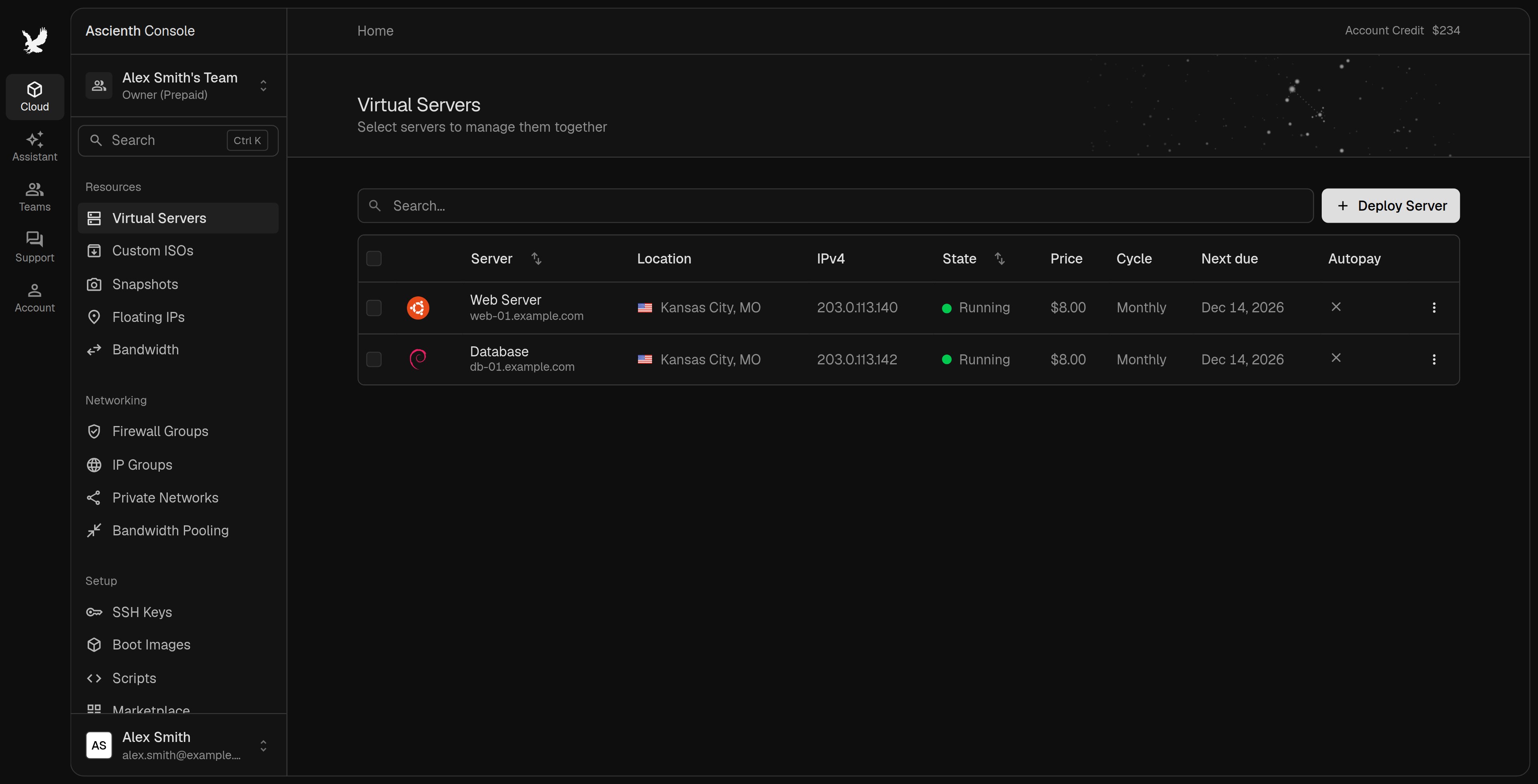
Open the server list
Go to “Cloud” > “Virtual Servers”.
2
Pick the team
Choose the right team from the menu at the top of the sidebar. Servers are grouped by team.
3
Search
Clear the search box and filters, then search by server name, hostname or IP.
4
Open the server
The header shows the primary IP and the server’s state.
Find the server password
Use the password you set for that server, or the link we emailed if you had one generated. The console can’t show an existing password. If you’ve lost it, go to “Settings” > “Reset Password” and set a new one. The username isroot on our Linux images and Administrator on Windows Server images. Your account email and console password don’t work as server credentials. See Connect to Your Server.
Find other services
Scroll down the Cloud sidebar to “Other Services”.- “Website Hosting” lists hosting accounts. Open one to reach its control panel.
- “Licenses” lists software licenses.
- “Dedicated Servers” sends you to the client area, since dedicated servers aren’t managed in the console yet.