Alerts belong to the selected team. The owner, or a member with the alert permissions, can manage them. Open “Teams” and choose “Event Alerts” or “Usage Alerts”.

Create an alert

1

Start a new alert

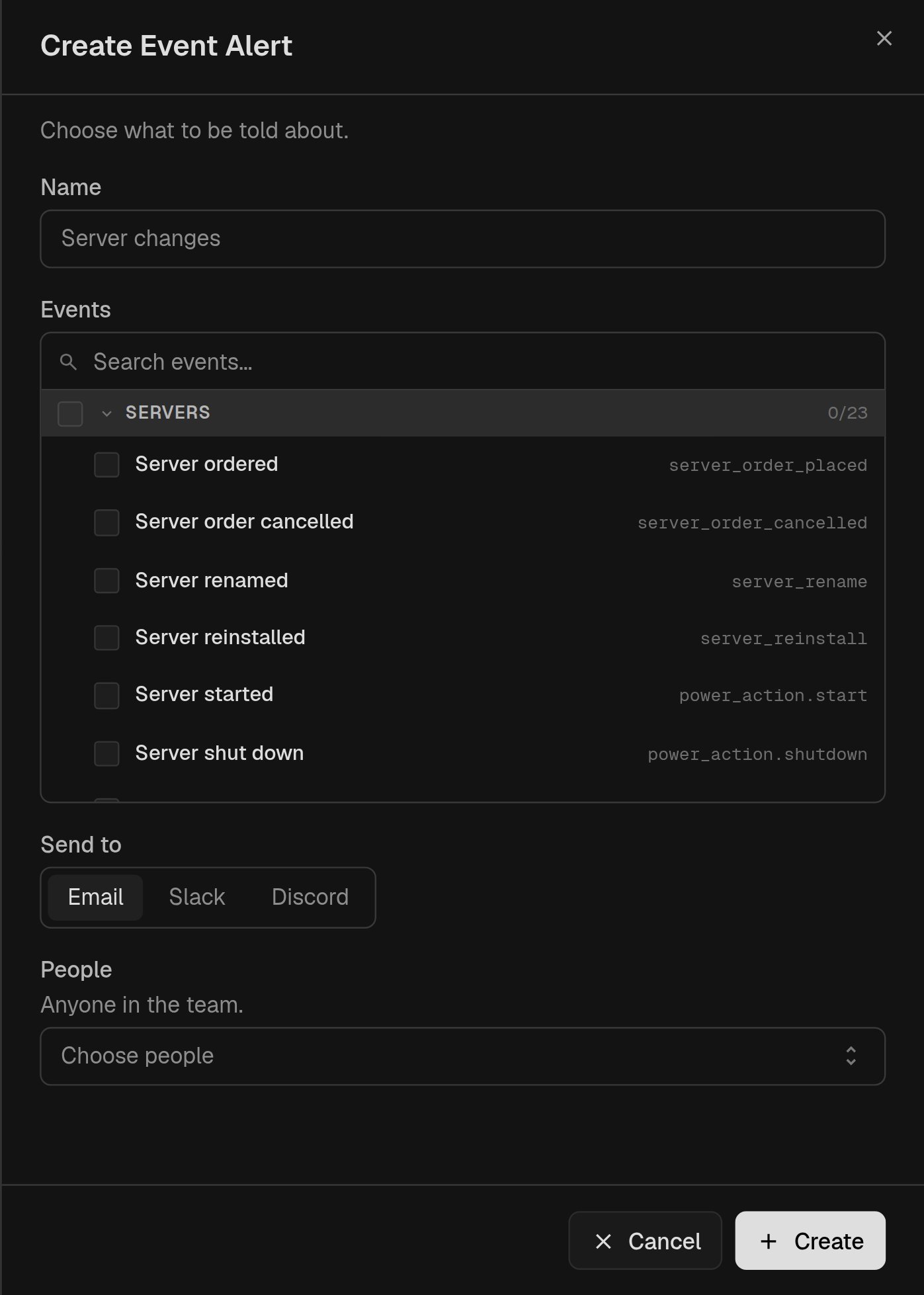
Open the matching page and click Create alert.Event alert setup with event and recipient choices
2

Choose where messages go

Name the alert. Pick email recipients, or choose Slack or Discord and enter its webhook URL. Treat webhook URLs as secrets.
3

Choose what to watch

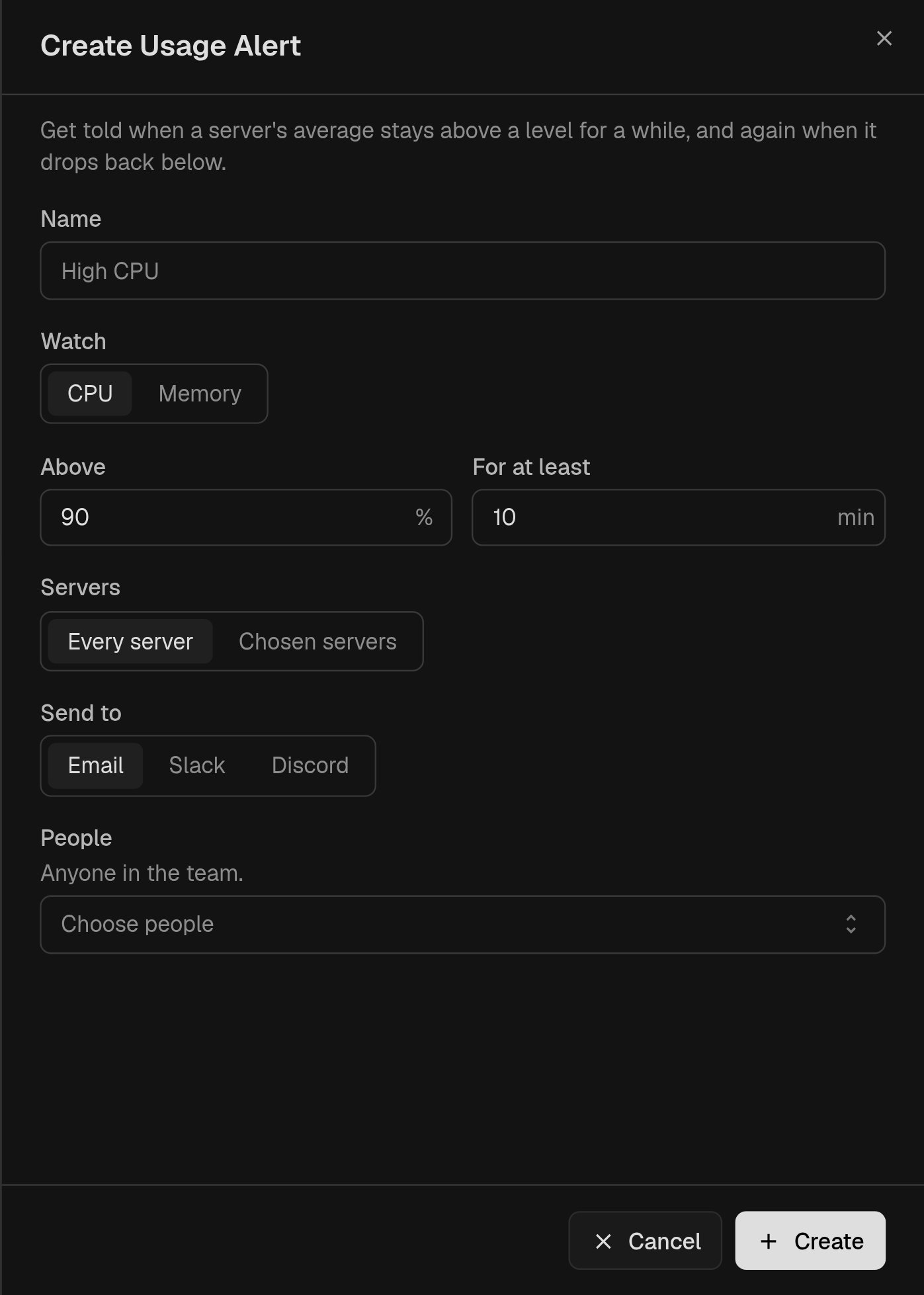
For an event alert, tick the events. For a usage alert, choose the metric, threshold and duration, then all servers or specific ones.Usage alert form with CPU threshold and duration settings
4

Save

Make sure the alert is active and save it. The list shows its status and when it last sent.
Usage thresholds run from 1% to 100%, and durations from 2 to 60 minutes. Alerts only notify you. They don’t add resources or stop a server.

Pause, edit or delete

Use an alert’s row menu to edit, pause, resume or delete it, or select several alerts for bulk actions. Pausing keeps the settings and stops messages.